
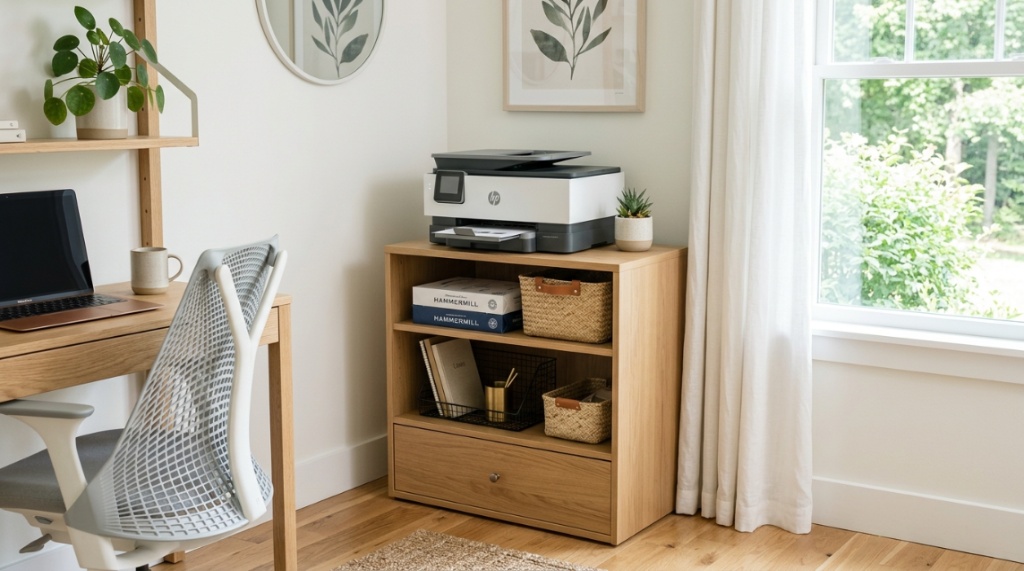
You know the scene. Your printer is taking over your desk, cables are dangling like jungle vines, and spare toner cartridges have become permanent residents on your filing cabinet. It’s not just messy—it’s killing your productivity.
You need a solution that tackles both the hardware and the clutter. A printer stand organizer is designed to do exactly that. It lifts your machine off your work surface and provides dedicated compartments for paper, ink, and accessories. Instead of fighting for space, you create a dedicated printing station that keeps everything within arm’s reach and out of your way.
What Makes a Printer Stand with Storage Different from a Regular Stand?
A standard printer stand is just a flat surface with legs. A printer stand with storage adds shelves, drawers, or cabinets specifically designed for office supplies. The difference is night and day. A basic stand holds the printer. A storage stand holds the printer plus everything you need to use it, maintain it, and keep your workspace tidy. Think of it as a command center for your document workflow rather than a simple pedestal.
Built-In Compartments vs. Add-On Bins
Many storage-oriented stands include molded paper trays that fit standard letter or legal size paper perfectly. Some have pull-out drawers for small items like USB cables, staplers, or labels. Others offer open shelving for bulky items like extra reams of paper or shredders. The best designs integrate these features so you never have to search for a supply again.
Why Should You Move Your Printer Off Your Desk?
Keeping a printer on your primary desk surface wastes valuable real estate. That space could hold your keyboard, a second monitor, or documents you are actively working on. When you move the printer to a dedicated stand, you instantly reclaim 2-3 square feet of usable desk area. That alone can reduce visual clutter and help you focus better throughout the day.
Reducing Noise and Heat
Printers generate heat and noise. When a printer sits on your desk, both become distractions. A separate stand, especially one with a solid shelf, helps dampen vibration and isolates the heat away from your immediate work area. Your printer can run without interrupting your flow.
How to Choose the Right Size Printer Stand Organizer for Your Supplies
Measure your printer first, then measure your supply needs. A good rule of thumb is to choose a stand that is at least three inches wider and deeper than your printer. This allows for airflow and easy access to paper trays. Next, think about volume. If you go through two reams of paper per week, you need a lower shelf that can hold at least one ream horizontally plus some vertical storage for extras.
- Width: Printer width plus 3-4 inches minimum
- Depth: Printer depth plus 2-3 inches for cable clearance
- Height: Ensure clearance above for opening scanner lid or top access
- Drawer depth: Minimum 2 inches for pens, clips, and small gadgets
- Shelf height: At least 8 inches for paper reams or binders
What Types of Storage Features Should You Look For?
Not all storage is created equal. Look for a combination of open and closed storage. Open shelving is perfect for frequently used items like copy paper and envelopes. Closed cabinets or drawers hide bulky supplies like toner cartridges, spare cables, and cleaning kits. A mix of both keeps your workspace looking clean while still being functional.
Drawer Dividers and Trays
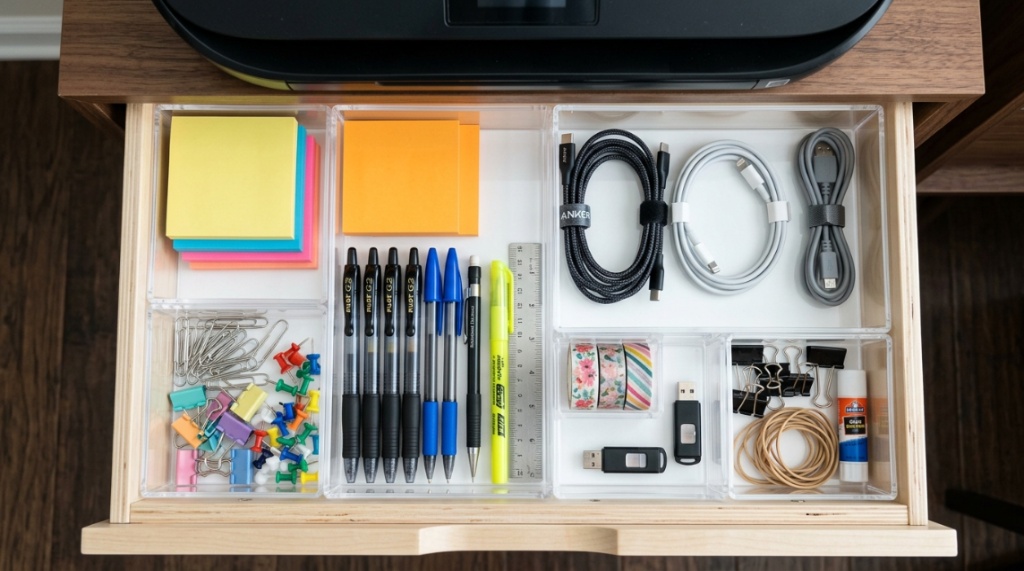
Some premium stands include built-in dividers inside drawers. This is a game changer for small office supplies. You can separate paper clips from binder clips, pens from highlighters, and sticky notes from labels. If the stand lacks dividers, you can add modular plastic trays later.
Can a Printer Stand with Storage Help with Cable Management?
Yes, absolutely. A well-designed stand includes cable management features like cutouts in the back panel, tie wraps on the legs, or a dedicated channel for running power and data cables. When you organize the cables, you prevent tangles, reduce dust buildup, and make it easier to move the stand if needed. Look for stands with at least one cable access hole large enough for a power brick to pass through.
Which Office Supplies Belong in Your Printer Stand Organizer?
The goal is to store only items directly related to printing and document handling. Here is a practical list of what belongs in your printer stand storage:
- Copy paper — at least one unopened ream and one partial ream
- Ink cartridges or toner — seal them in a ziplock bag to prevent dust
- Envelopes — standard #10 and padded mailers
- Labels and sticker sheets — keep them flat to avoid curling
- Stapler and staples — for quick document binding
- Paper clips and binder clips — sorted by size
- USB cables and power cords — coiled and secured with velcro ties
- Cleaning supplies — lint-free cloths and isopropyl alcohol wipes
Avoid storing food, drinks, or personal items in the printer stand. Humidity and crumbs can damage paper and electronics.
How to Set Up Your Printer Stand Organizer Step by Step
Setting up your organizer correctly ensures it works for you long-term. Follow this step-by-step process:
- Assemble the stand — follow manufacturer instructions and tighten all bolts
- Place the stand — position it near an outlet and within reach of your chair
- Route cables first — feed printer power and USB cables through back cutouts before placing the printer
- Install the printer — center it on the top shelf, leaving space on sides for ventilation
- Load bottom shelves — put heaviest items (paper reams) on the lowest shelf for stability
- Organize drawers — use dividers or small containers to separate small items
- Create a waste station — place a small bin near the stand for used paper and empty cartridges
- Label everything — use a label maker to mark drawer contents for instant recognition
- Test workflow — print a document from your computer to make sure cables aren’t tight
When Is the Best Time to Invest in a Printer Stand Organizer?
The best time is when you notice your printer has become a permanent fixture on your desk and supplies are scattered across multiple surfaces. Another strong indicator is when you start buying duplicate supplies because you cannot find the originals. If you reorganize your office every few months but the printer area stays chaotic, that is a clear sign a dedicated storage solution is overdue. Moving to a new office or redesigning your home workspace is also an ideal moment to add one.
How to Maintain Your Printer Stand Organizer Over Time
An organized stand only stays organized if you maintain it. Schedule a five-minute cleanup every two weeks. During that time, remove the printer and wipe down shelves, check for dust in cable channels, and discard any expired supplies. Rotate paper stock so older reams get used first. Replace ink cartridges before they dry out. This simple habit prevents clutter from creeping back and extends the life of both your stand and your printer.
| Maintenance Task | Frequency | Tools Needed |
|---|---|---|
| Dust shelves and exterior | Every 2 weeks | Microfiber cloth, compressed air |
| Check cable connections | Monthly | Flashlight, zip ties |
| Organize drawer contents | Monthly | Label maker, small containers |
| Replace depleted printer supplies | As needed | New ink, paper |
| Deep clean entire unit | Quarterly | Mild cleaner, vacuum with brush |
Can a Printer Stand Organizer Work in a Small Home Office?
Yes, and it often works better than in a large office. In a small space, vertical storage is critical. A compact printer stand with two or three shelves can hold your printer, paper, and supplies in a footprint no larger than two square feet. Look for models with casters so you can roll the stand into a closet or corner when not in use. Some designs also include a pull-out keyboard tray below the printer shelf, turning the stand into a secondary writing surface.
What Common Mistakes Do People Make When Organizing a Printer Stand?
The biggest mistake is overloading the stand. Printer stands have weight limits, usually between 50 and 100 pounds. Stacking too many heavy reams on lower shelves can cause the stand to wobble or collapse. Another common error is placing the printer too close to the edge of the shelf, which creates a tipping hazard. People also forget to allow ventilation space around the printer, which can lead to overheating and paper jams. Finally, avoid storing supplies in the original shipping boxes inside the stand. Remove items from boxes to maximize usable space and reduce bulk.
Frequently Asked Questions
How much weight can a typical printer stand with storage hold?
Most stands support between 50 and 100 pounds total. The top shelf usually holds the printer, which typically weighs 15-30 pounds. Lower shelves can handle paper reams and accessories. Always check the manufacturer’s weight rating before loading.
Can I use a printer stand with storage for a scanner or copier?
Yes, as long as the stand is wide and deep enough to accommodate the device. Multifunction printers, scanners, and copiers often have similar footprint requirements. Ensure the top shelf is sturdy enough for the device weight and vibrations.
Do I need to assemble the stand myself?
Most printer stands require some assembly. Basic models come with simple tools and instructions. Higher-end stands may include pre-assembled components. Plan for 20-45 minutes of assembly time depending on complexity.
What is the best material for a printer stand organizer?
Steel and heavy-duty MDF (medium-density fiberboard) are the most common and reliable materials. Steel offers durability and a modern look. MDF with a laminate finish resists scratches and moisture. Avoid particle board, which can sag under weight over time.
How do I clean a printer stand without damaging it?
Use a damp microfiber cloth with mild soap for surfaces. Avoid harsh chemicals or abrasive cleaners. For metal stands, a glass cleaner works well. Always dry the surface immediately to prevent moisture damage. Compressed air is excellent for cleaning cable channels and tight corners.
Can I add extra storage accessories to my printer stand?
Yes, many stands accommodate add-on accessories like paper trays, wire baskets, or small drawer units. Magnetic strips can hold clips and scissors on metal stands. Adhesive hooks work for hanging cables or headphones. Just ensure any add-ons do not exceed the stand weight limit.
Is a printer stand with storage worth the investment for a home office?
Absolutely. It eliminates desk clutter, reduces time spent searching for supplies, and creates a dedicated workflow zone. The cost is typically between 40 and 120 dollars, which is far less than the productivity loss caused by a disorganized workspace.
When setting up your printer stand, keep your tech secure and your network private. While organizing your physical space is important, digital workspace safety matters just as much—especially since modern threats often mimic everyday services, like how scammers use ads for targeting remote workers and businesses.
Conclusion
Organizing your office supplies with a printer stand that has storage is one of the fastest ways to reclaim your desk space and streamline your daily workflow. By lifting your printer off your main work surface and giving every supply a dedicated home, you reduce visual clutter, minimize distractions, and improve efficiency. Choose a stand that fits your printer size and offers a mix of open and closed storage. Set it up with cable management in mind, maintain it regularly, and avoid common mistakes like overloading. Your desk will thank you, and so will your focus. Start by measuring your space and browsing options that match your needs. A small investment in organization pays dividends every single time you print.